Use JustGains inside Claude
Add the JustGains connector in Claude and ask it to build workouts, save them to your account, and answer questions about your real training data.
Claude is great at talking about training, but out of the box it knows nothing about your training. JustGains has an official Claude connector that fixes that. Once connected, Claude can look at your actual workout history, build workouts that land straight in your JustGains account, and answer questions like "how consistent was I this month?" with real numbers instead of guesses.
Under the hood this uses the Model Context Protocol (MCP), an open standard that lets AI assistants talk to apps securely. You do not need to know anything about it. JustGains is listed in the Claude connector directory, so connecting is a couple of clicks, and after that you just chat.
What you can do once connected
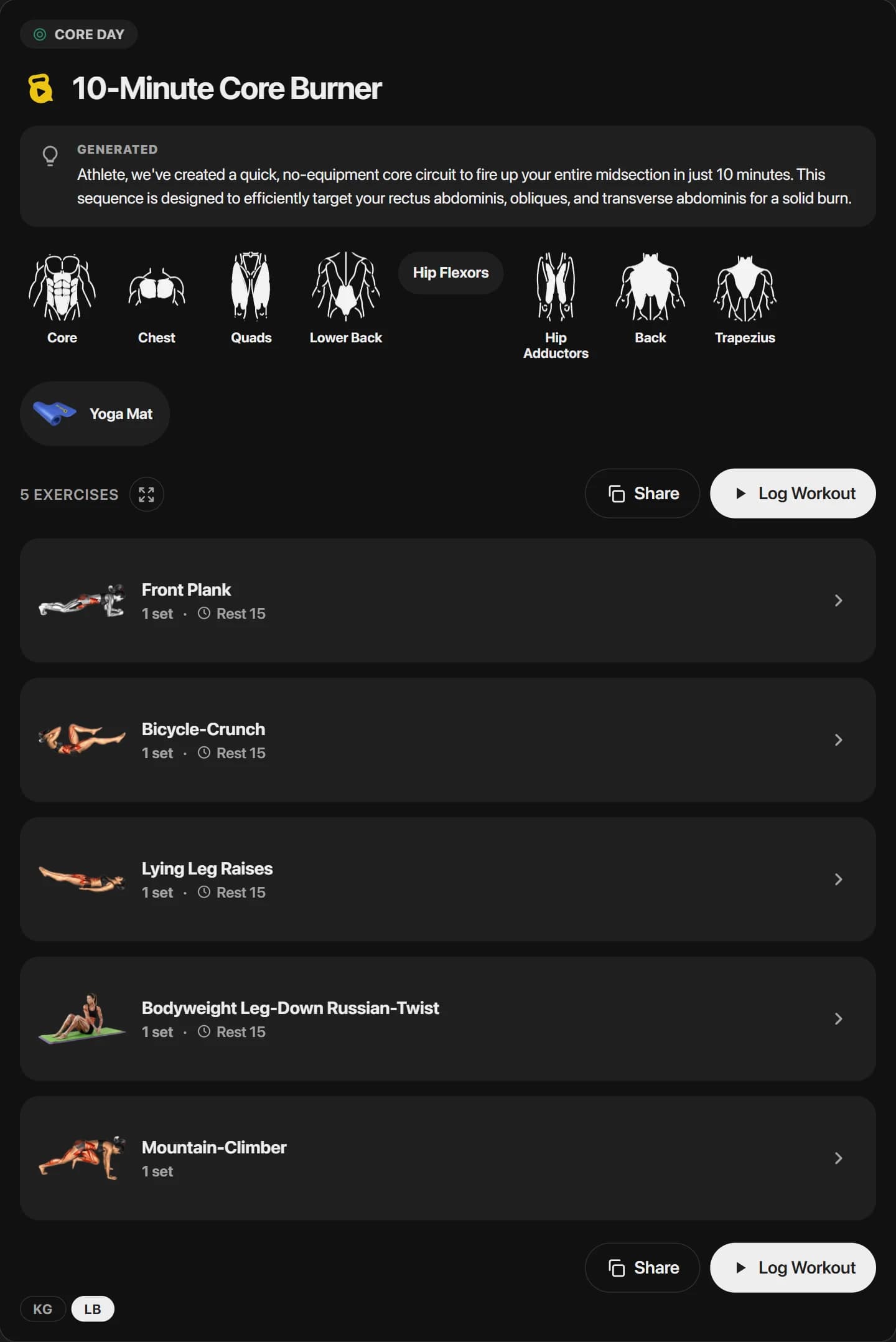
- Generate workouts. "Make me a 25-minute dumbbell upper body workout." Claude builds it with real JustGains exercises and shows it as an interactive workout card right in the chat: video previews, sets and reps, muscle groups, equipment, a kg/lb toggle, and a button to open and log it in JustGains.
- Build a workout to exact spec. Spell out precisely what you want ("create a push day: bench 4x8 at 60 kg, incline dumbbell press 3x10...") and Claude assembles it set by set, matching every exercise against the real JustGains exercise library.
- Review your training. Ask for your recent workout history, a summary of your week, your progress over any date range, or an honest read on how consistent you have been.
- Dig into specific lifts. "What are my top exercises?" or "show my bench press history and PRs" pulls your real logged sets.
- Work with programs. Browse JustGains workout programs and enroll in one, or have Claude author a full multi-week program for you.
- Track your weight. Check your weight trend, or tell Claude "log 82 kg for today" and it writes the entry for you.
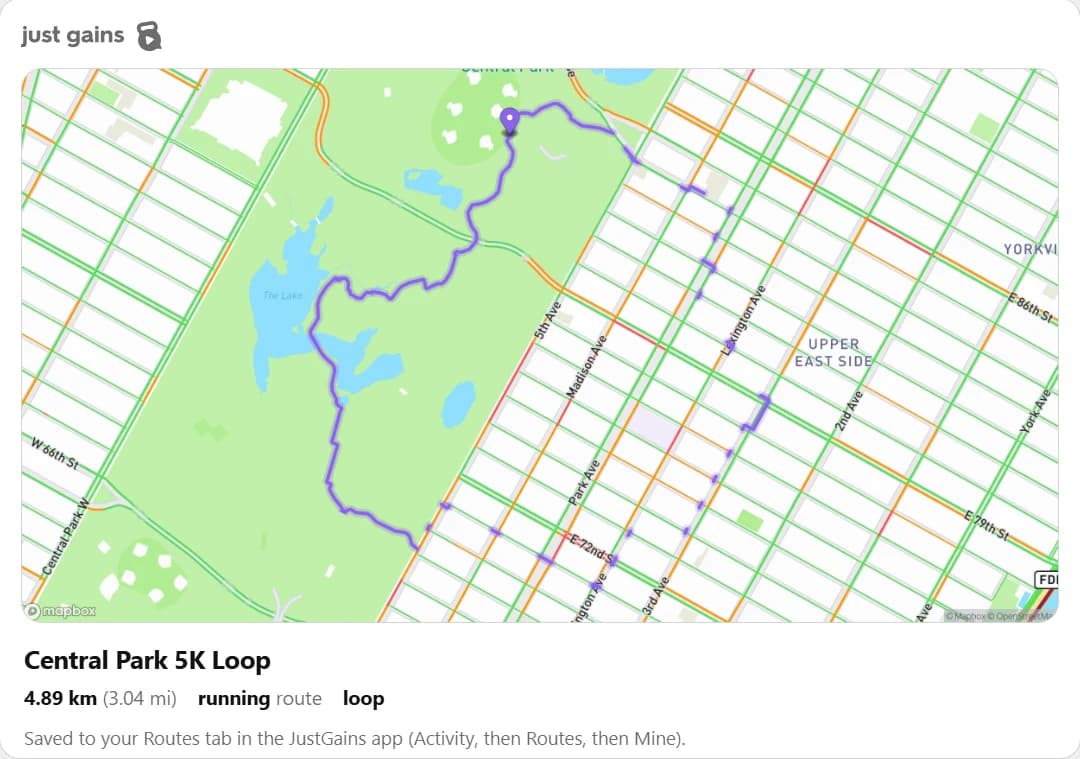
- Plan runs, rides, and walks. Ask for a route near a location and Claude creates one snapped to real roads and paths, shows it on a map in the chat, and saves it to the Routes tab in the app.
How to connect JustGains to Claude
You add JustGains from the Claude connector directory. It takes about a minute, you only do it once, and connectors are available on the Claude Free plan. Once connected, it works everywhere you use Claude: the web app, desktop, and mobile.
- In Claude (claude.ai or the app), open Settings, then go to Connectors.
- Find JustGains in the connector directory and click Connect.
- You will be sent to JustGains to sign in (or approve, if you are already signed in), then bounced straight back to Claude.
- That is it. Start a new chat, and when a question involves your training, Claude can use JustGains to answer it.
Things to try first
- "Make me a 25-minute dumbbell upper body workout and save it to my JustGains."
- "Create a push day: bench press 4x8 at 60 kg, incline dumbbell press 3x10, lateral raises 3x15."
- "Summarize my last week of training. What should I focus on next week?"
- "How is my squat progressing? Compare this month to last month."
- "Write me a 4-week beginner strength program and enroll me in it."
- "Plan me an easy 5 km running loop starting from the town square and save it as a route."
Privacy and control
Claude can only reach your JustGains data after you connect your account, and the connection uses a secure sign-in (OAuth) rather than your password. Claude never sees your JustGains password. Everything it saves (workouts, weight entries, routes) lands in your own account, exactly as if you had entered it in the app.
You stay in control at both ends. In JustGains, the connection appears as Claude (MCP) in your device list, and you can revoke it anytime from your devices and settings page. Or remove the connector in Claude settings. Either way access stops immediately, and nothing about your JustGains account changes when you disconnect; your data stays yours, in the app, as always.
FAQ
Keep learning
Use JustGains inside ChatGPT
Connect JustGains to ChatGPT and ask it to build workouts, save them to your account, and answer questions about your real training data.
How workout suggestions work
JustGains workout suggestions are deterministic, rule-based prompts from your recent training.
Sets, reps, and training volume
Training volume is how much work you actually do, usually counted in hard sets.